
Ask and you shall receive in the form of forecast flexibility! You can now show staffing forecasts based on operational hours right inside Zendesk WFM.
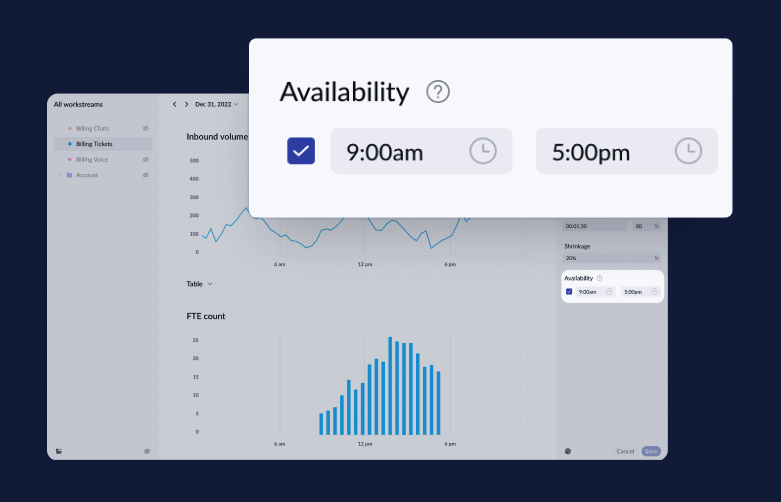
When working to support customers we’re usually looking at two request scenarios – live channels such as chat and voice in which we are helping our customers in real-time, and non-live channels such as emails and web forms in which we set expectations with our customers that we will get back to them within a specified amount of time (thanks SLAs).
Naturally, live channels have designated hours of operation – times you’ll have chat turned on, and times you’ll have it turned off. Non-live channels, however, can have requests flowing in at any time of the day or night, regardless of if you have someone at their computer to help out. If no one is on staff in the evening, and you have non-live customer requests pouring in, you’ll probably have some sort of backlog in the mornings when your team starts their work day. This is why having designated hours of operation built into the forecast is a necessary element to disperse the backlog across the team, and include it in the workload you’re forecasting for your agents – and thus the number of agents you schedule each day. This means more accurate forecasting, and staffing, while creating a better work environment by having accurate goals and expectations for your support teams.
How to set this up in your forecast
Head into your forecast and…
- Click to select a workstream
- On the right information panel, click to expand Staffing Parameters
- Check the box under Availability at the bottom and enter your hours of operation for that workstream
- Click Save and watch your staffing needs automagically adjust!
The post Zendesk WFM: Introducing customizable business hours in Forecast appeared first on Zendesk.